How to add a new seat to your account
Last updated: January 30, 2026
If you’d like to connect another LinkedIn Username to your Stanley account, you can do so by adding a Seat directly from your account settings!
Follow the steps below to add a seat:
Log into your account at stanley.stan.store
Click the three lines (☰) in the top corner of your dashboard to open the menu.
Scroll to the bottom of the menu and click on your name to access account options.
From the menu, click Settings to view your subscription details
Click Add Seat underneath your account name and follow the prompts to confirm.
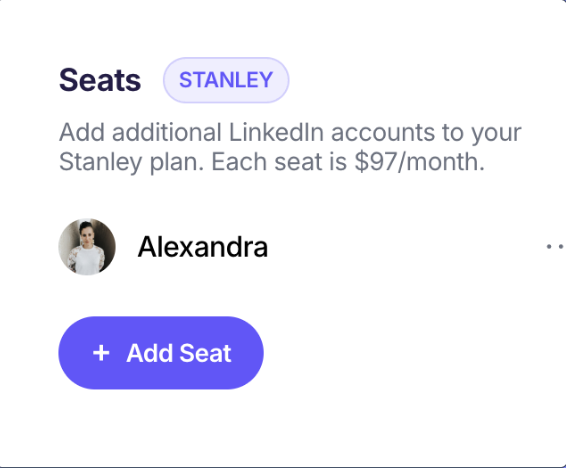
Add the LinkedIn Username of the account you'd like to create a seat for
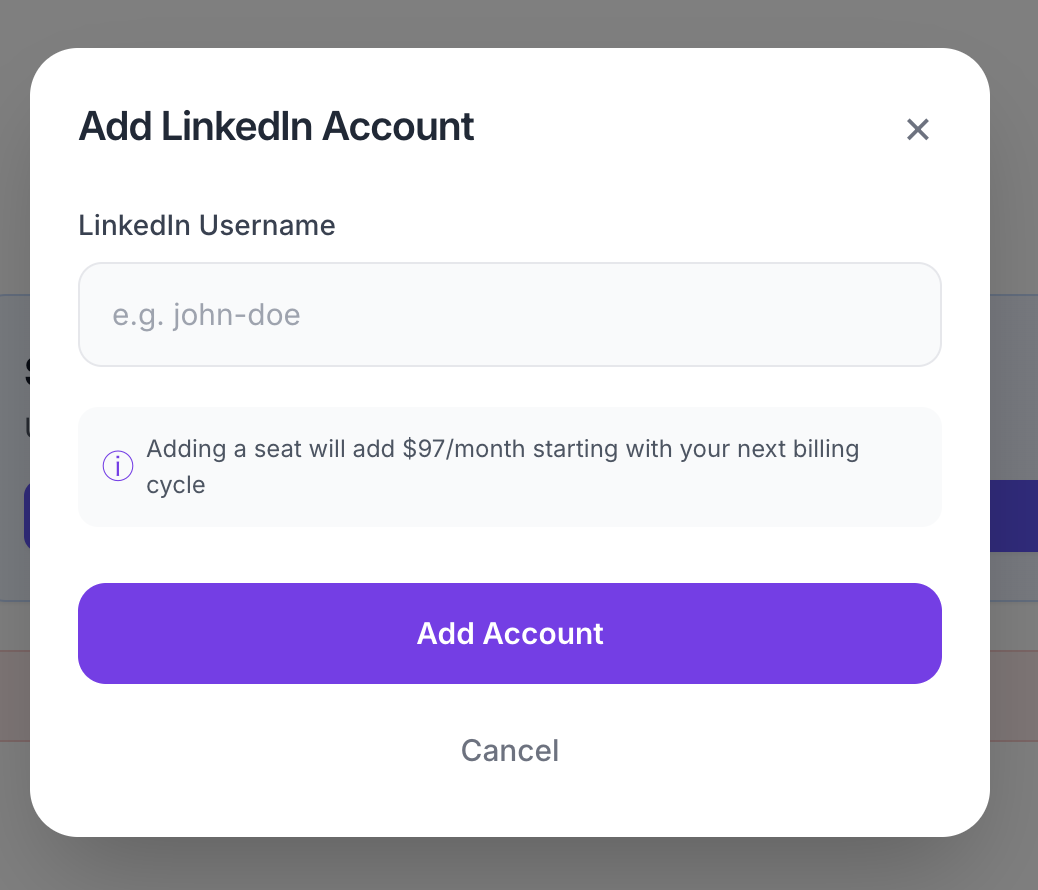
Click Add Account!
Once added:
The new seat will be available immediately
Billing will update accordingly
Need to manage seats later?
You can add or remove seats anytime by returning to your account Settings.
🙋 Need a hand?
If you don’t see the Add Seat option or have questions about seat billing, email us at stanley@stanwith.me — we’re happy to help 💌