How do Get Started with Stanley for LinkedIn?
Last updated: January 29, 2026
Creating a Stanley for LinkedIn account allows him to write, schedule, and publish posts directly on your behalf — all from one place!
Follow the steps below to get started:
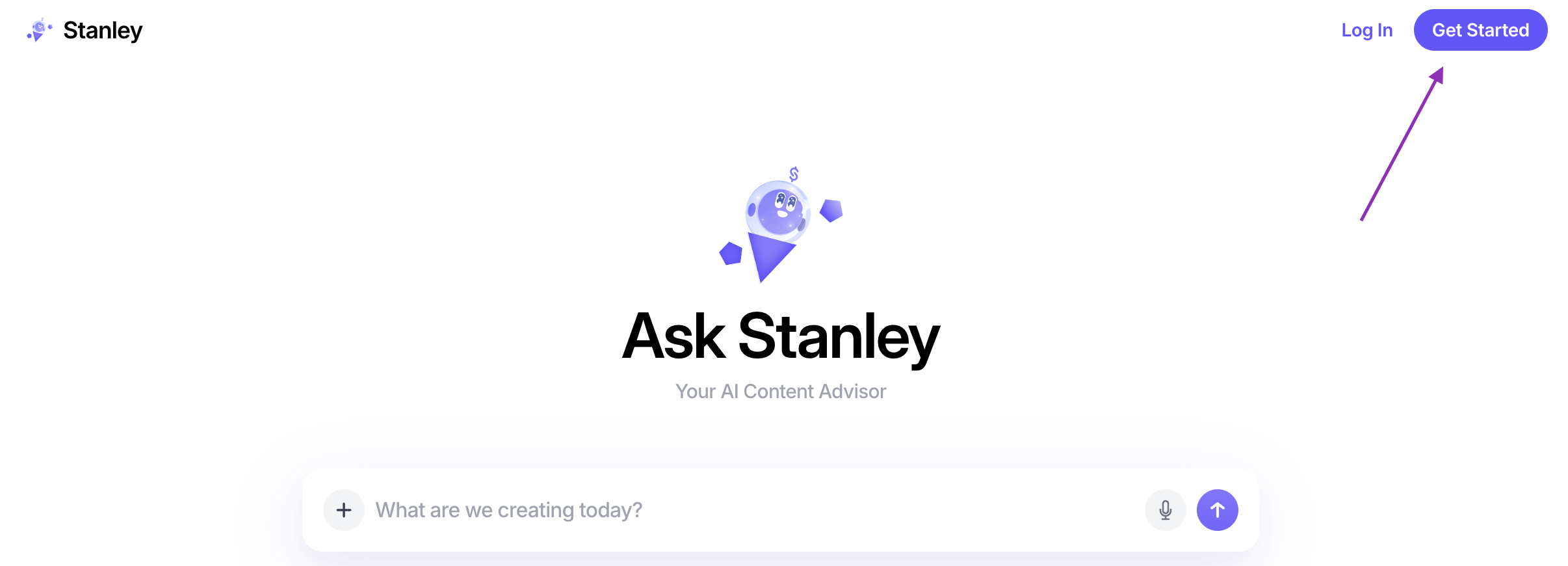
Step 1: Get started with Stanley!
Head to stanley.stan.store and click Get Started on the top right-hand side
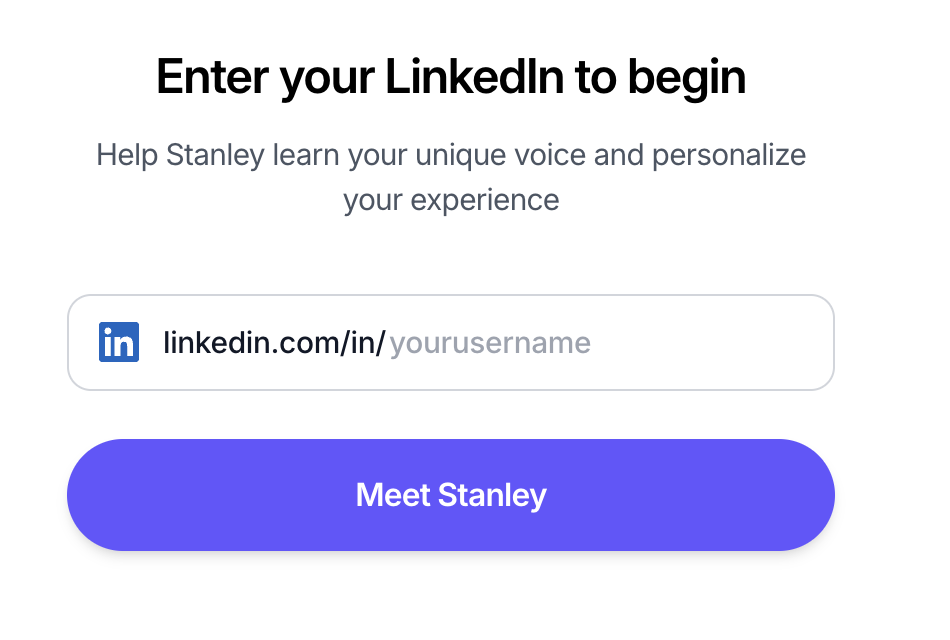
Step 2: Enter your LinkedIn Information 🔗
From here, you'll be prompted to enter your LinkedIn Username to begin your journey with Stanley
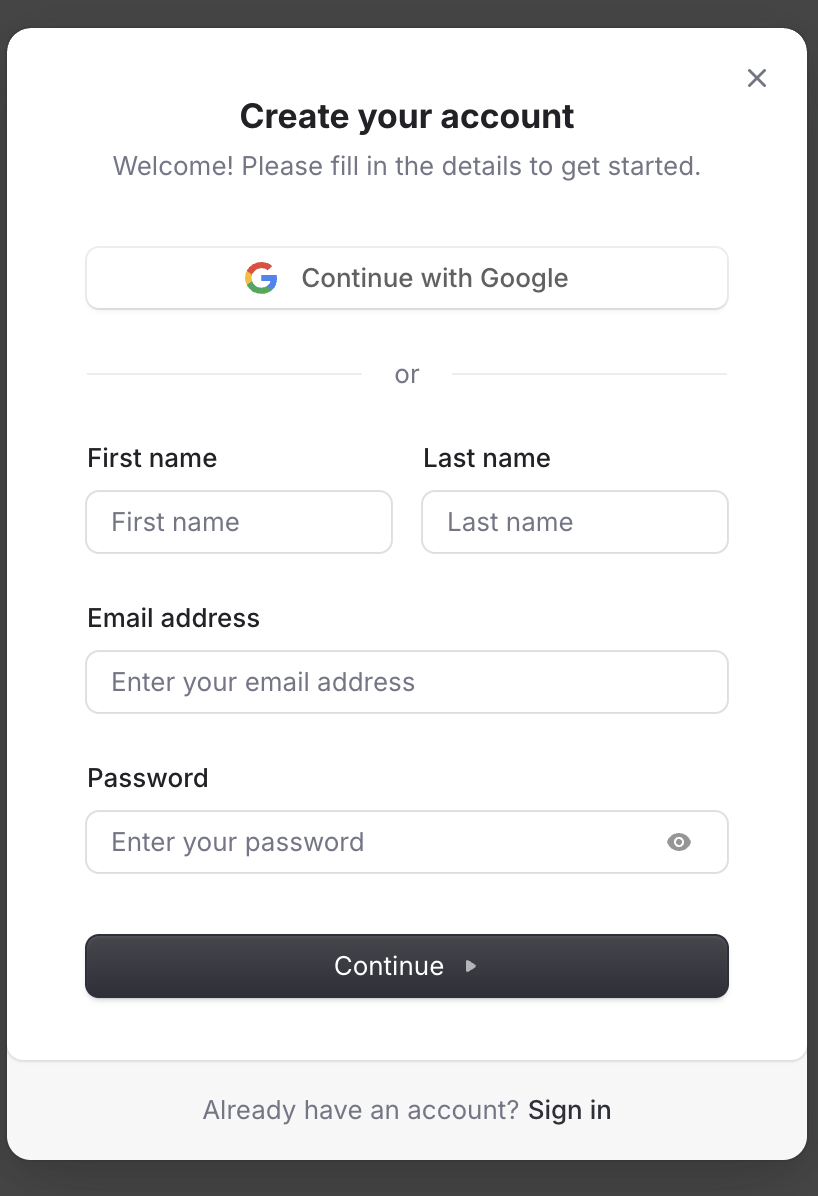
Step 3: Click Meet Stanley and Create Your Account 👋🏼
Once you click Meet Stanley you’ll be prompted to create your account
Make sure you:
Fill in your First and Last name
Fill in your Email address
Create a secure password
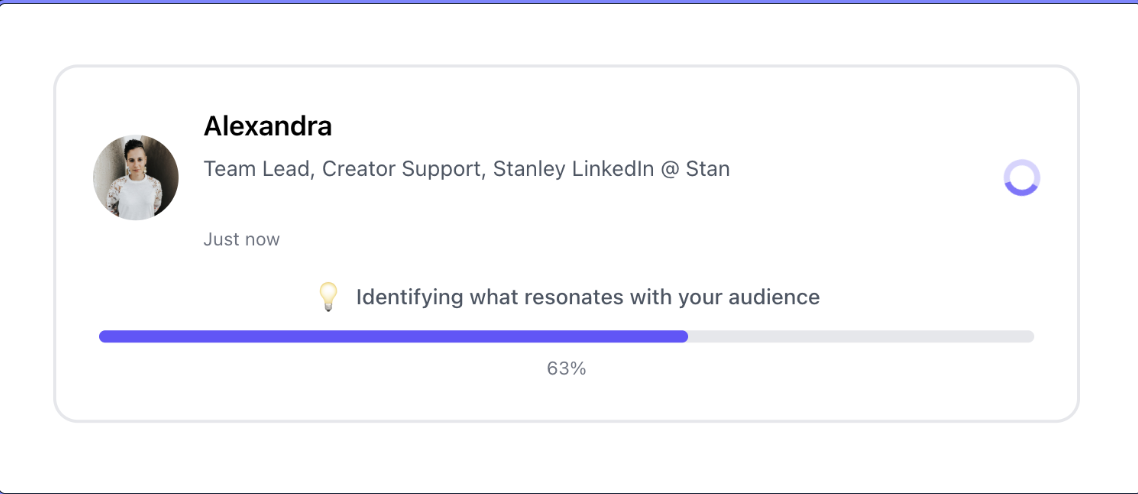
Step 4: Let Stanley Get to Know You 🤝
Once you create your account, Stanley will get started collecting all the information he needs from your LinkedIn Profile!
One he does, you'll be ready to:
Draft posts with Stanley
Schedule content
Publish directly to LinkedIn
After Stanley gives you a personalized overview, click Level Up Your Next Post to move forward!
Step 5: Start a Subscription 🎟
To keep using Stanley giving you the goods, you'll have to make it official! Once you click Level Up Your Next Post, you'll be taken to a subscription window.
Depending on your location, you'll have the option to sign up using:
Credit card
Google Pay
Apple Pay
Klarna
Link
Amazon Pay
Step 6: Click Subscribe 🎉
Welcome to Stanley!
🙋 Still stuck?
Email us anytime at stanley@stanwith.me and we’ll take a look 💌